In this article
Why assign team members?
Assigning team members to your services ensures that only qualified staff appear as options when scheduling appointments. This prevents scheduling errors and ensures your customers are always matched with the right professional.
Smart Scheduling
When a service is assigned to specific employees, the Booking Widget and AI Agent will only offer time slots when those specific members are available. This real-time synchronization keeps your calendar perfectly managed.
Job title auto-selection
When you create a new service, the system automatically pre-selects team members whose job title grants them access to the service's category. You don't have to manually check each person — the right staff are already selected based on how job titles are configured in your organization.
You can always adjust the selection before saving. Any member who is pre-selected can be unchecked, and any member who wasn't pre-selected can be added manually.
Understanding member states
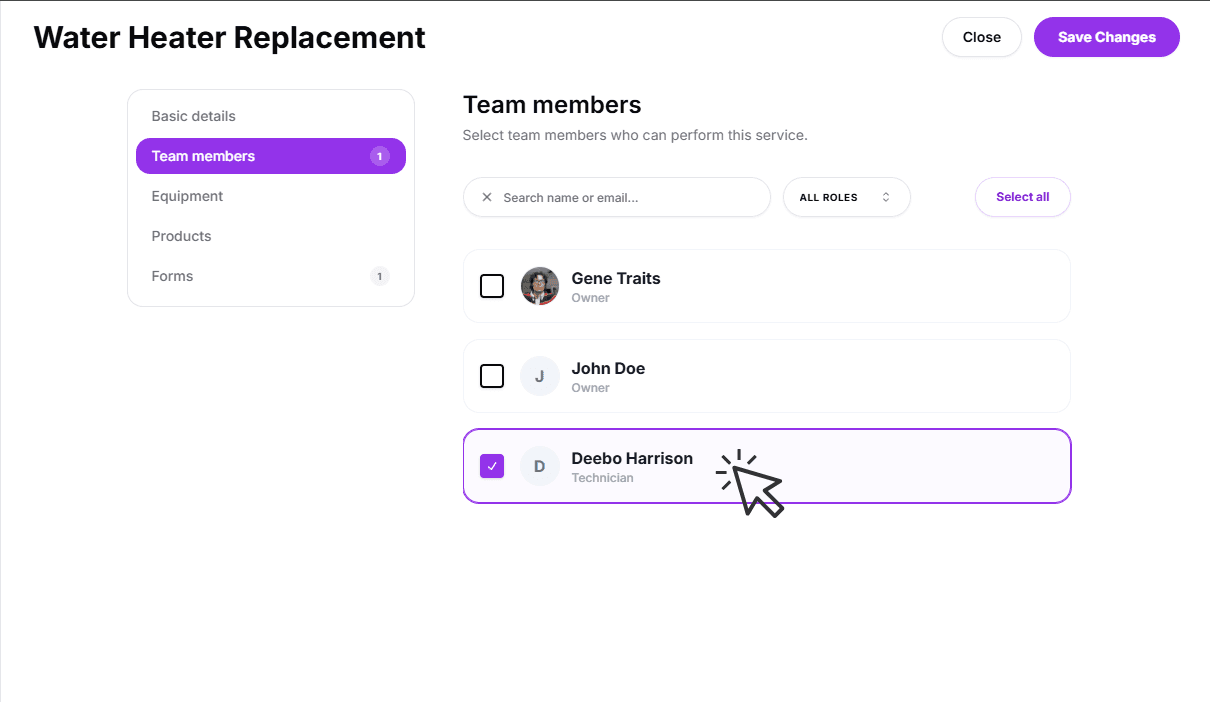
- Assignable (active checkbox):The member either has services enabled globally, or their job title covers this service's category. You can check or uncheck them freely.
- Grayed out (disabled):The member has services turned off in their profile and their job title does not cover this category. They cannot be assigned to this service.
Job title access is configured in your organization's team settings. Contact your administrator if a member's job title needs to be updated.
Step-by-step assignment
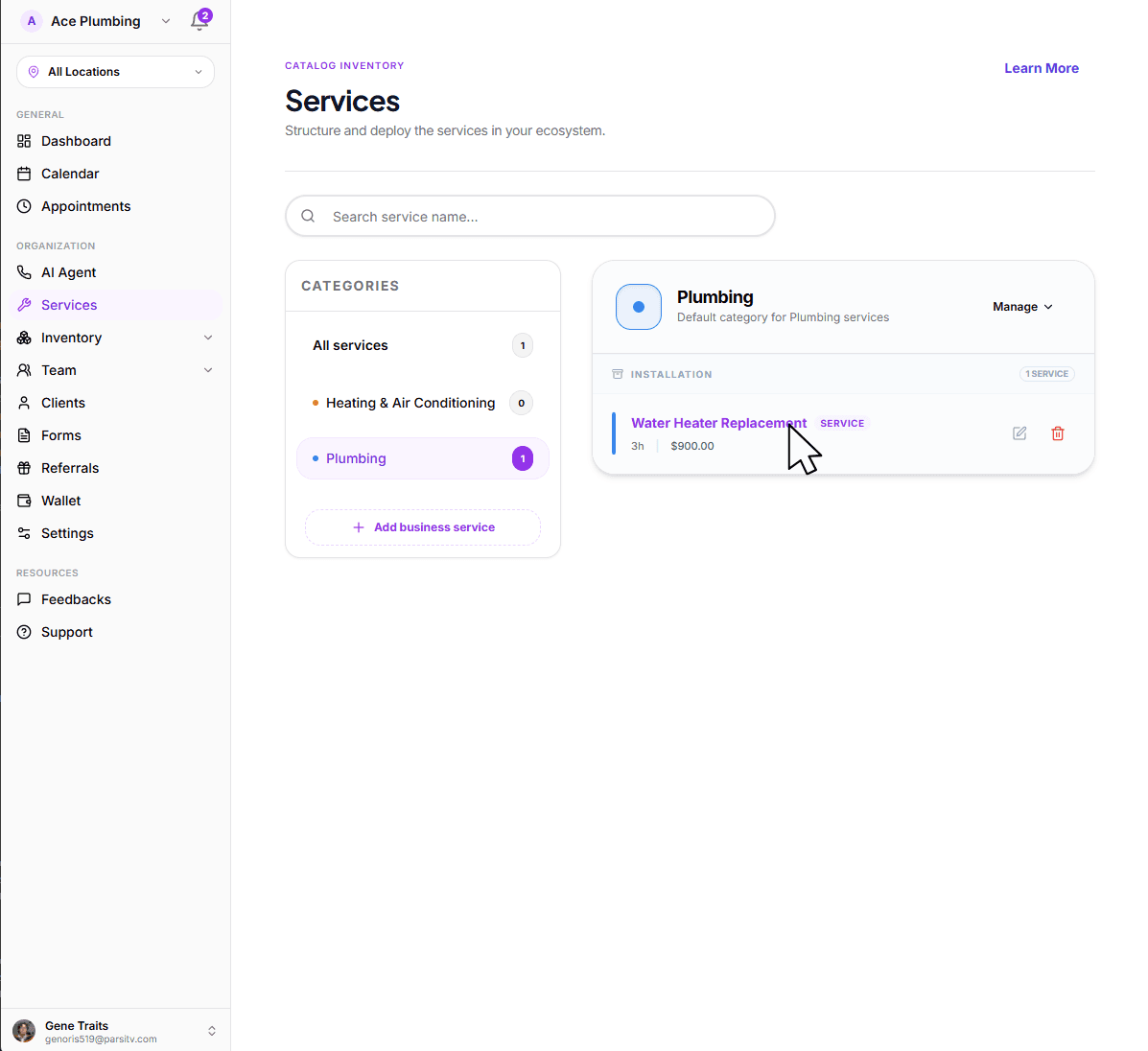
Open the global menu by clicking the menu iconin the top corner, then tap the Services tab.
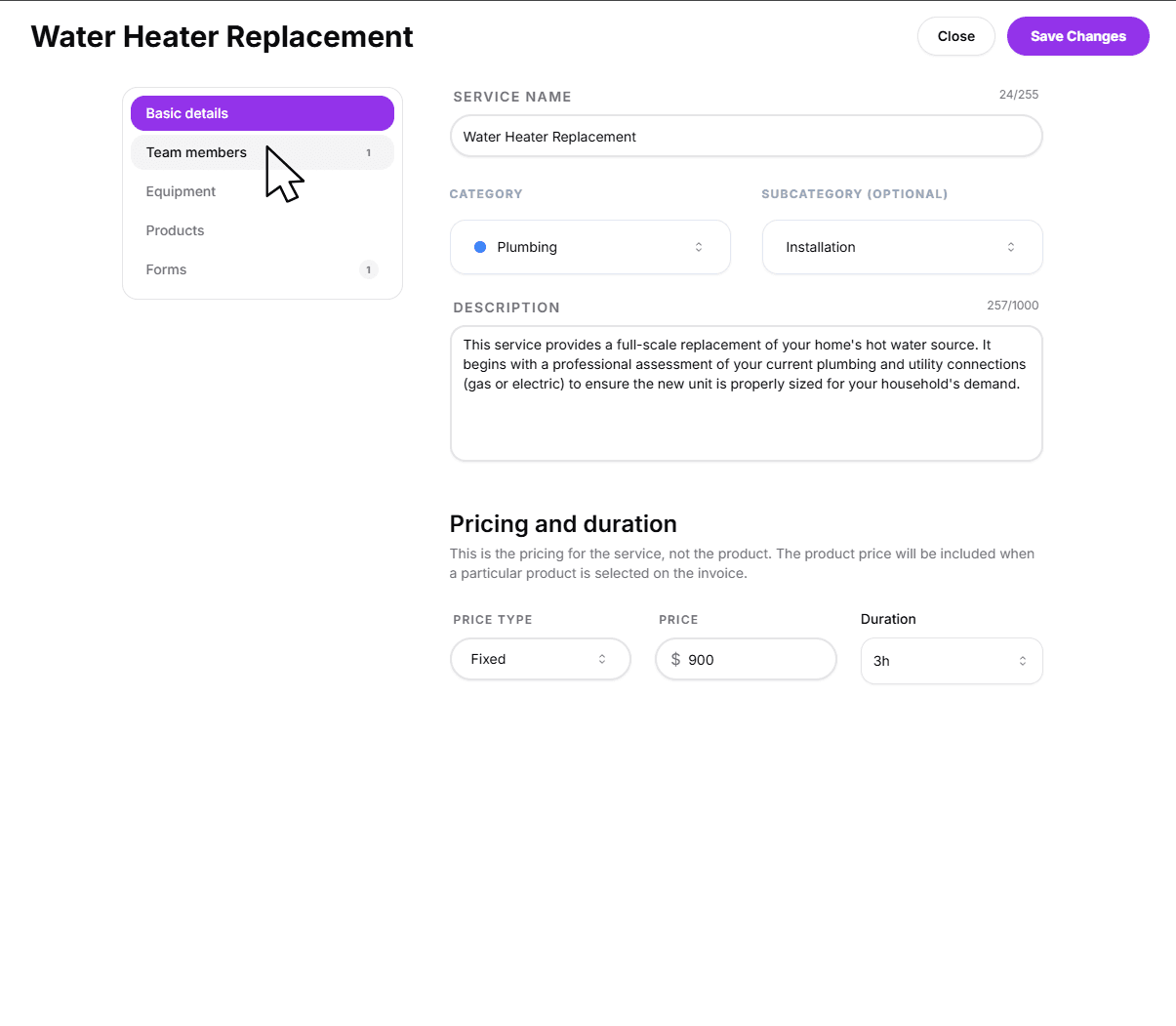
Select the service you want to manage from your service menu.
Tap the Team members tab in the sidebar or sliding panel.
Search & filtering
For larger organizations, you can use the built-in search and filtering tools to manage your team assignments efficiently.
Instant Search
Use the search bar at the top of the list to quickly find a member by their name or email address.
Job Title Filtering
Filter the list by job title to quickly see all members with a specific role — for example, show only HVAC Technicians or Plumbers when assigning a specialized service.
Next: Link your equipment
Staff aren't the only resource needed for a job. For services that require physical assets like vans or heavy machinery, you'll need to link your equipment to ensure availability.
Ready to link resources?
Learn how to manage and assign your physical tools and assets to specific services.
View guide: Equipment in services