In this article
Step-by-step linking
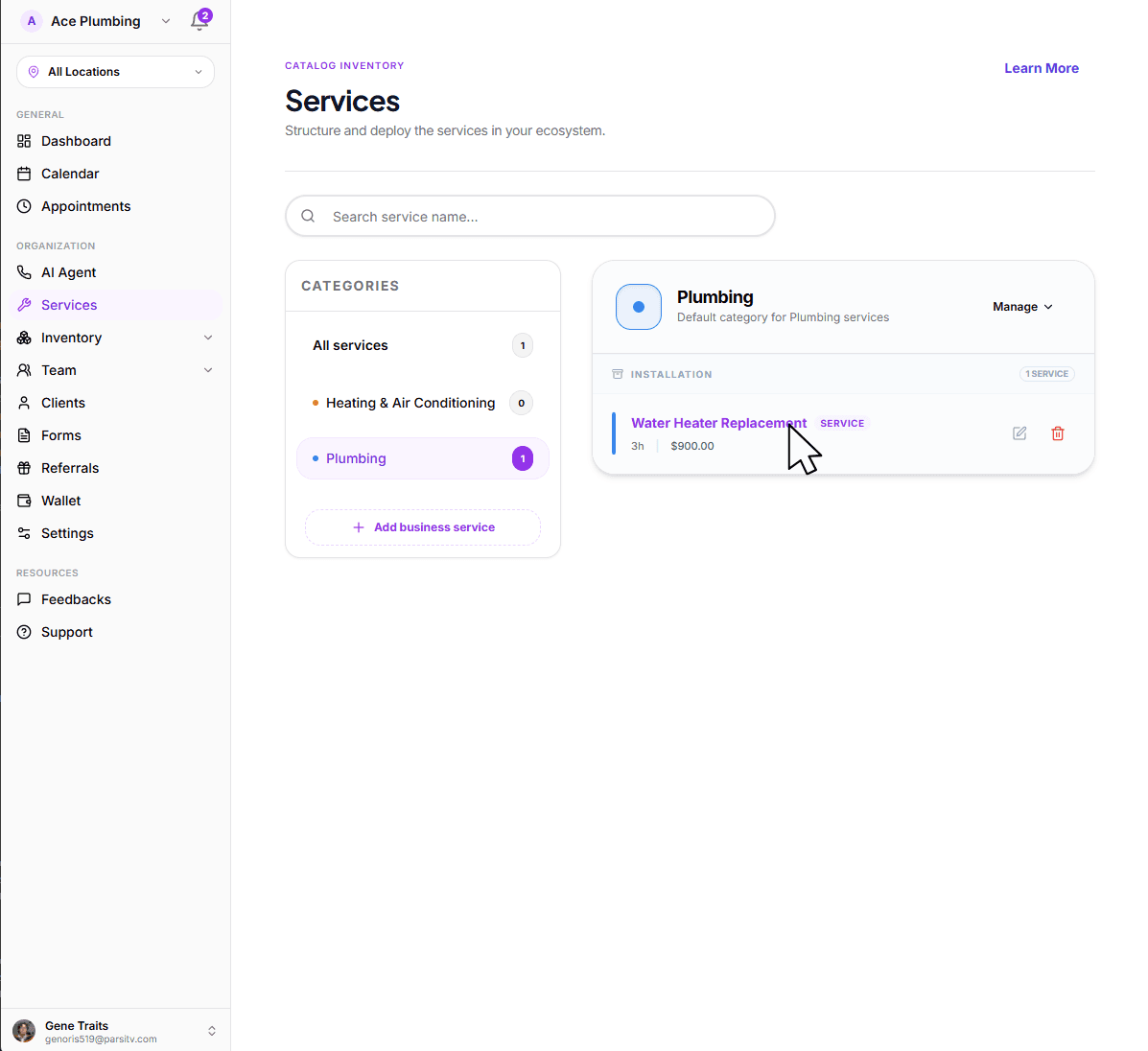
Open the global menu by clicking the menu iconin the top corner, then tap the Services tab.
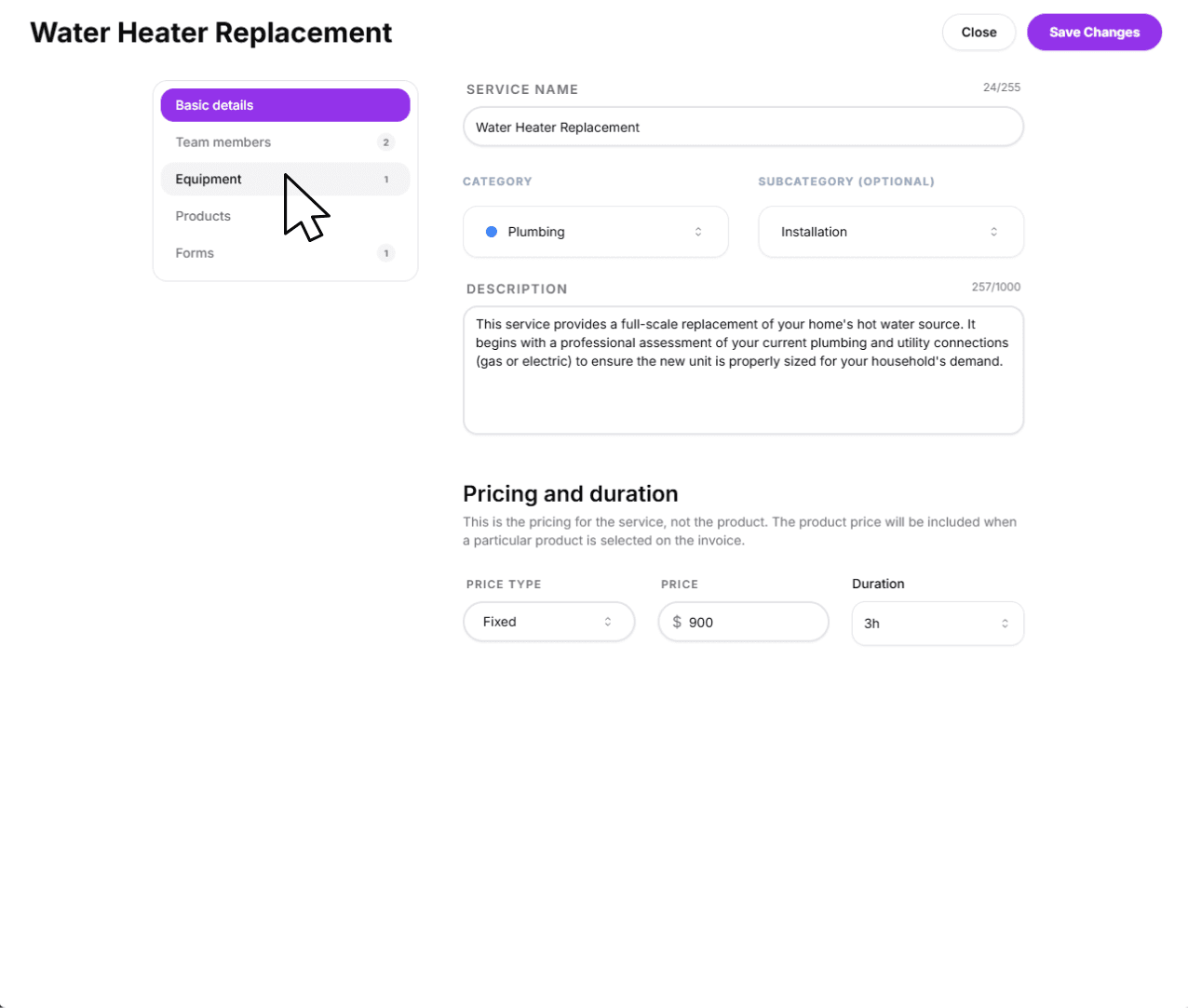
Tap on any already created service to open its management sheet.
In the sidebar (or via the tab menu on smaller screens), tap the Equipment option.
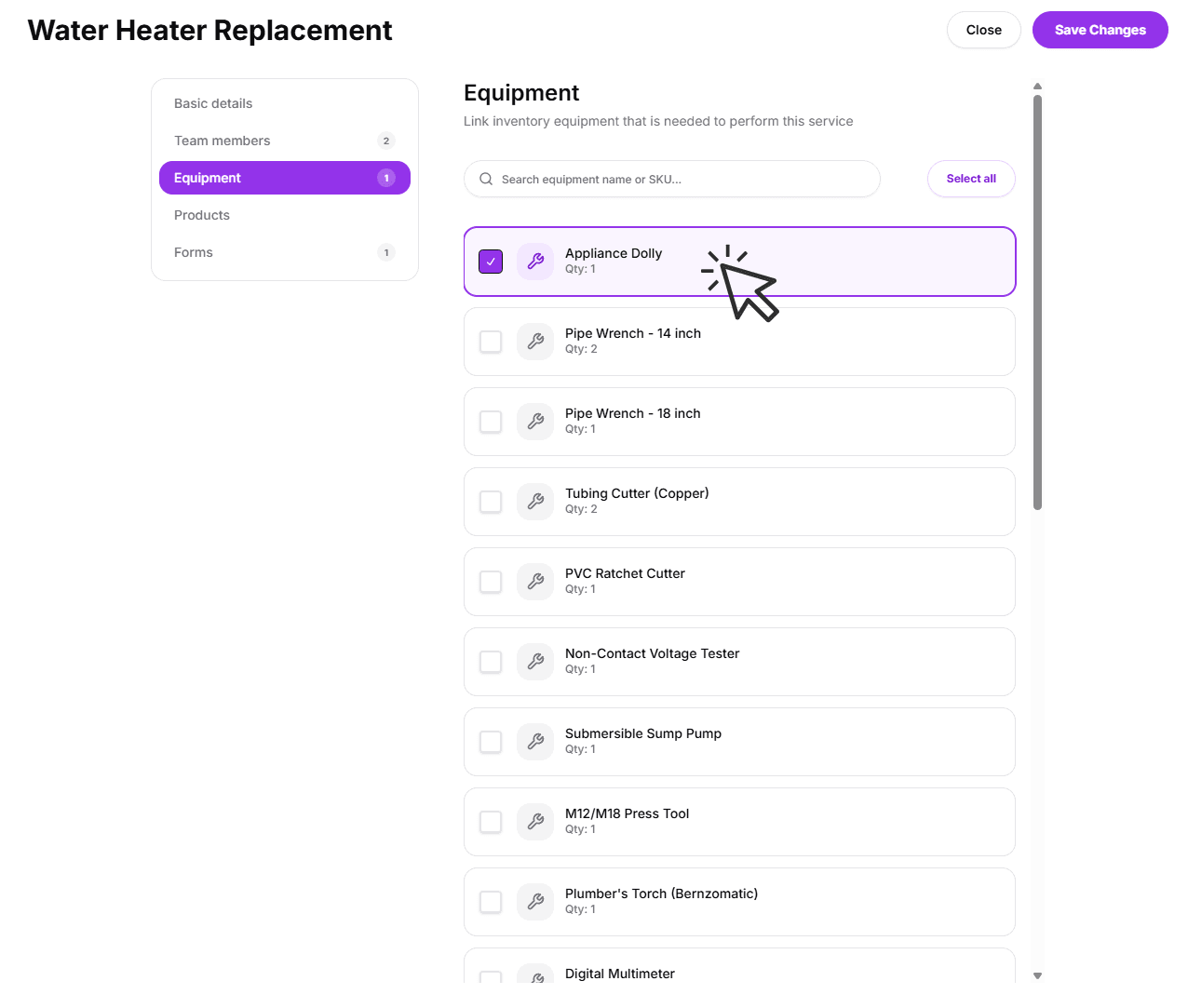
Select the equipment needed for the service and tap the Save Changes button at the bottom.
For more information on the other tabs, follow these links:Team members,Equipment,Products, andForms.
Using search & bulk selection
For organizations with large inventories, we provide powerful tools to find and link equipment in seconds.
Real-time Search
Type the name or SKU of an asset into the search bar. The list will filter instantly as you type.
Bulk linking
Once you've filtered for a specific set of tools (e.g., "Wrench"), click the Select all button to link all matching items at once.
Next: Add service products
Linked equipment handles availability, but what about the materials and parts used during the job? To track inventory levels and automatic pricing, you'll need to add products to your services.
Ready to add products?
Learn how to link inventory items and set automated stock tracking for every booking.
View guide: Products in services