In this article
Subcategory creation steps
1
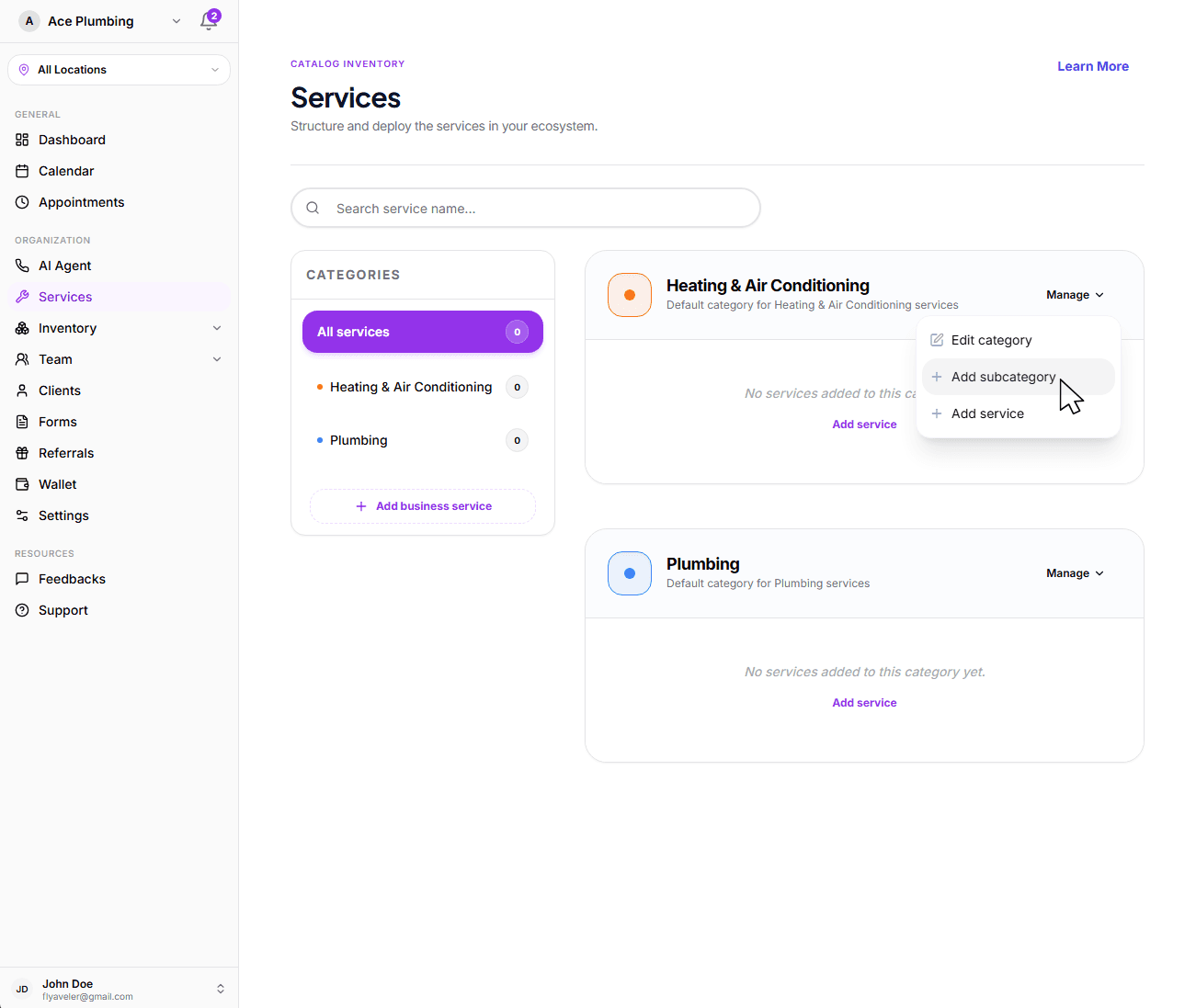
Open Category Management
Click the manage button dropdown for the category you want to create a subcategory inside of.
2
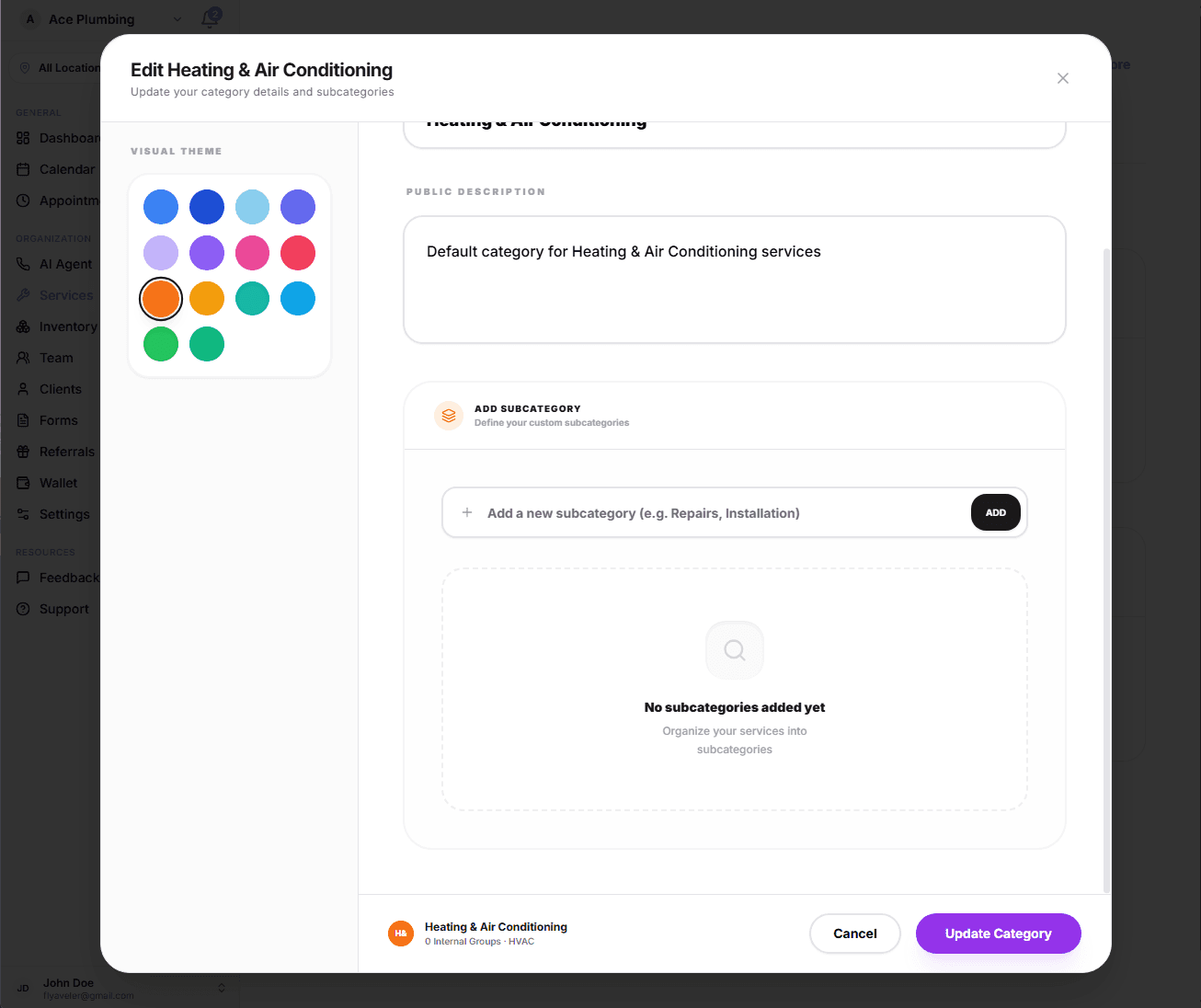
Configure and Save
Scroll down to the add subcategory section. Select the input and type in the name of the subcategory you want to go with, then click the add button. Finally, to save all changes, click Update category.
Next: Add existing services
Creating the subcategory is just the first step. To keep your dashboard organized and easy for your team to navigate, you'll need to move your existing services into their new homes.
Ready to organize?
Learn the easiest way to bulk-assign services or move individual tasks into your subcategories.
View guide: Add existing services to a subcategory